


Parameters (petrol)
Petrol engine
OBD access to petrol engine parameters, including:
- engine RPM
- throttle position
- rail pressure
- AFR
- turbo pressure (measured and target)
- IAT and EGT temperature
- ignition advance and related knock corrections
Parameters (diesel)
Diesel engine
OBD access to diesel engine parameters, including:
- engine RPM
- engine torque
- injected diesel quantity
- rail pressure (measured and target)
- turbo pressure (measured and target)
- IAT and EGT temperature
GPS
GPS
Compare position and altitude data to perform repeatable tests over time.
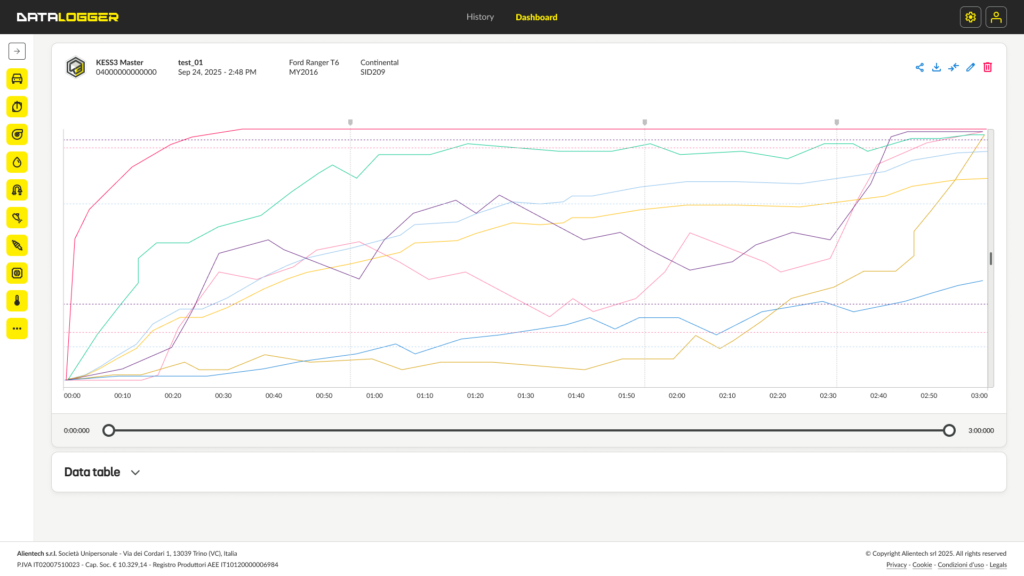
Monitor engine data inside and outside the workshop and analyze every value with clear graphs. Compare recordings and gain more control over vehicle behavior during every stage of the job.
Modify the files read from an ECU with more than 190,000 available Drivers, working on the useful parameters to build custom calibrations.
Overview
DataLogger completes your workshop workflow with no additional tools. You can verify every intervention by comparing values before and after the modifications.
Select only the useful parameters and set thresholds and markers for targeted analysis: engine RPM, pressures, temperatures, loads and much more. All sessions are saved and remain available in the Dashboard.
DataLogger gives you real control over every intervention.
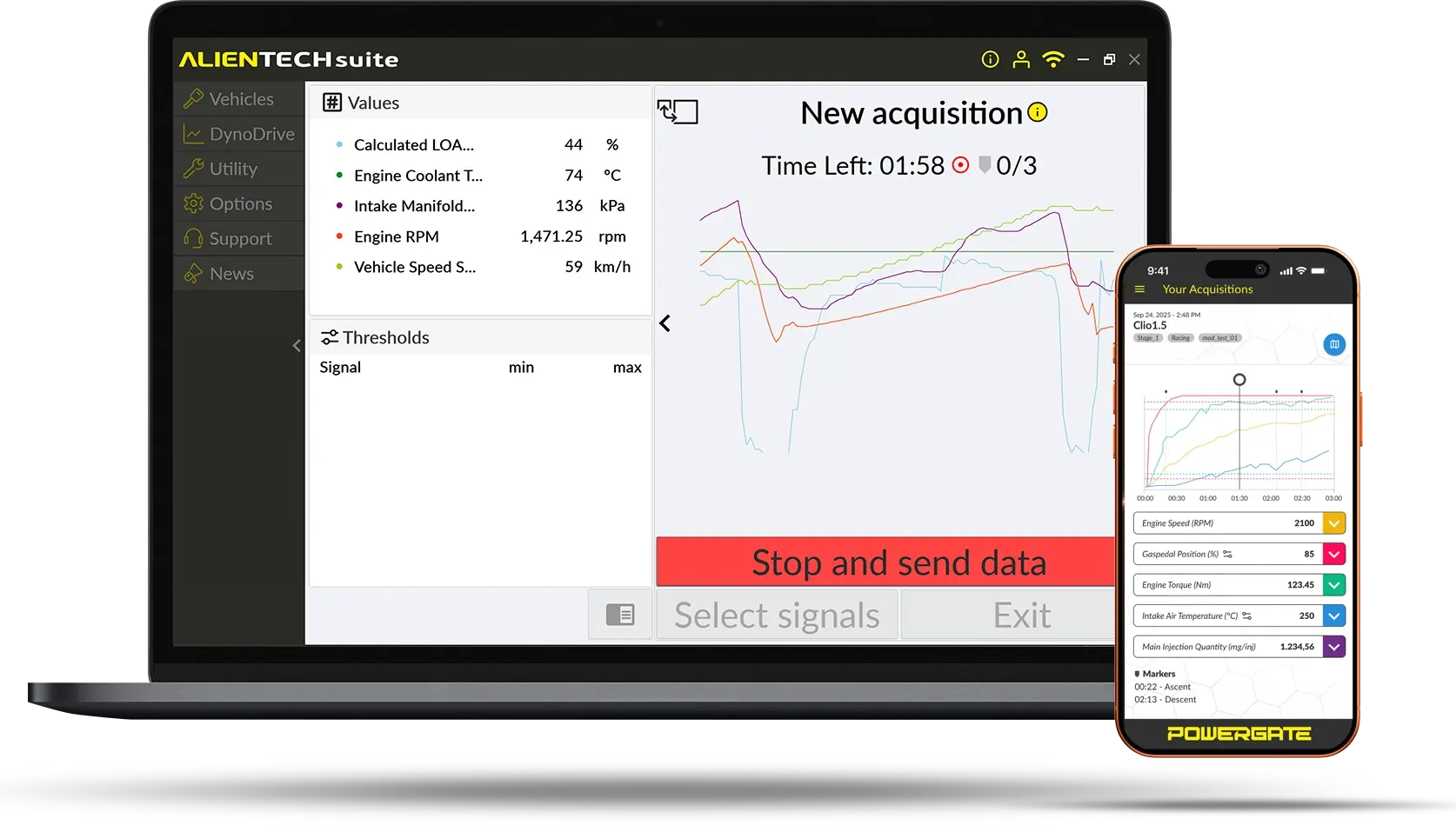
DataLogger comes included with every KESS3 CAR subscription and is available to all Powergate users.
DataLogger - Quick User Guide
1
First start-up and vehicle selection
- Connect KESS3 or Powergate to the vehicle’s OBD diagnostic port and to the PC using the USB cable.
- Launch the Alientech Suite software or the Powergate App.
- Select the vehicle from the list or search by model for KESS3.
2
Test phase
- Choose up to 5 parameters to display with real-time thresholds and select the other values to save in the log.
- Start the 2-minute logging session using the space bar.
- End the logging phase by pressing the space bar again.
Would you like to receive more information about DataLogger?
Contact Us
For any questions about DataLogger
FAQ
Data logging, diagnostics and analysis
Yes. Saved logs can be analyzed and compared to check differences between configurations, modifications or vehicle operating conditions.
Yes. With DataLogger, you can view and record parameters such as pressure, temperature, engine speed and other values returned by the ECU.
Yes. Datalogging can be performed both in the workshop and on the road, allowing you to analyze engine behavior in real operating conditions.
No. You can perform datalogging even offline. The data is saved and can be consulted or exported later.
No, it is always available on all KESS3 units with an active subscription.
Absolutely. Datalogging allows you to verify engine behavior after a modification in a concrete way and check that all parameters are working correctly.
Yes. Each datalog session can be saved and archived for future consultation.
You can view and record the main ECU parameters in real time, such as engine RPM, turbo pressure, fuel quantity, temperatures, engine load and many other values available in the control unit.
Compatibility and coverage
DataLogger is available for vehicles supported. The parameters that can be monitored depend on the ECU and the protocol used.
Inside the Suite, you can search by make, model, engine or control unit. In just a few steps, you can check compatibility and the available connection modes.
Connection and operation
You can read, write and clone control units, manage DTCs, monitor parameters with DataLogger and measure performance with DynoDrive. All functions are integrated into the same environment.
Support
You can request support for reading/writing procedures, software use, operational errors, protocol compatibility and management of Alientech functions.